Does Google Photos keep the original video?
Yes. Saving an edited video creates a copy with your edits, and the original stays in your library.
Free · runs in your browser
Use the Adjust tools in Google Photos, or open this page in Chrome for an automatic correction and a side-by-side before and after.
To darken a video on Android, open it in Google Photos, tap Edit, then Adjust. Choose Brightness and turn the dial down, use Highlights for a glaring sky, and Black point to deepen washed-out shadows. Tap Done for each adjustment, then Save to keep a copy with your edits.
Google Photos can edit video on most recent phones, though Google lists some limits (below). If your phone can’t edit videos, or you want highlight recovery measured from the clip itself, open this page in Chrome and use the tool above. It processes the video on the phone and doesn’t upload it.
In Google Photos, open the clip and tap Edit at the bottom of the screen.
Under Adjust, choose Brightness and move the dial to the left. Google describes Brightness as adjusting the exposure, so it lowers the whole picture.
Choose Highlights and lower it to pull back a bright sky. Choose Black point to make dark areas darker. Tap Done after each one, or Cancel to drop it.
Tap Save at the top. Google Photos saves a copy of the video with your edits, so the original remains.
Google Photos lists these video adjustments: Brightness, Contrast, White point, Highlights, Shadows, Black point, Saturation, Warmth, Tint, Skin tone, Blue tone, Vignette and HDR effect. For darkening, four do most of the work:
There is also Auto then Enhance, which adjusts colour and lighting automatically. It’s a reasonable first try, but it aims at a pleasing average rather than at recovering highlights.
Google’s help page says video adjustments need Android 8.0 or later and at least 3 GB of memory, and some phones running Android 9 can’t edit videos in Google Photos at all. Phone makers’ own gallery apps vary: Samsung’s video editor documents filters, for example, rather than exposure sliders.
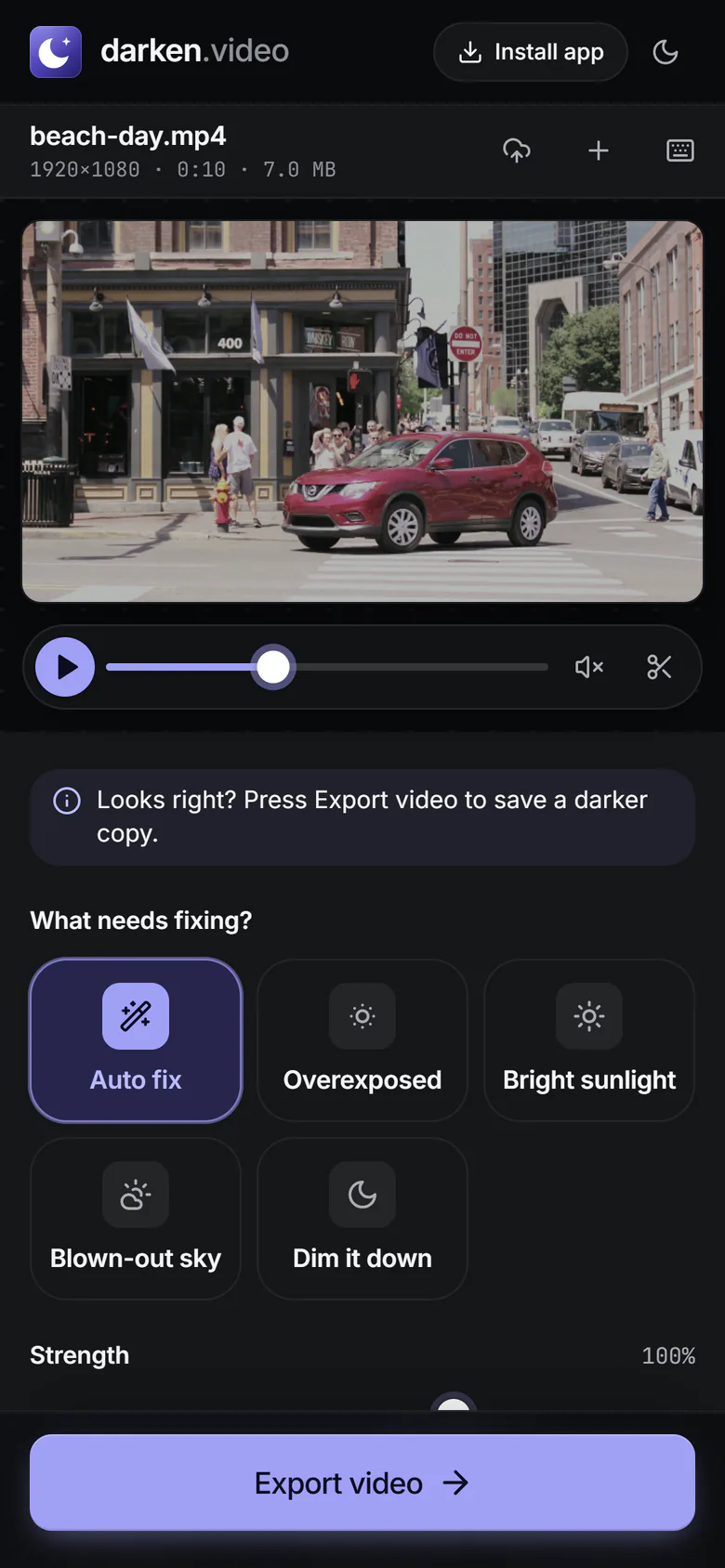
In any of those cases, the tool on this page is a dependable alternative:
 (enlarge image)
In Chrome on a phone: tap Auto fix, then Export video.
Turning Brightness down on its own pulls blacks down to a dull charcoal as well as taking the glare off. The cure is to lower Black point a little on Google Photos, or use Blacks under More options in the tool here. Phone footage shot into the sun often also has lens flare, a milky haze that lowers contrast; a touch more Contrast helps with that. For the reasons behind it, see overexposure explained.
Yes. Saving an edited video creates a copy with your edits, and the original stays in your library.
Google says video adjustments need at least Android 8.0 and 3 GB of memory, and some Android 9 phones can’t edit videos. Use the tool on this page in Chrome instead.
Samsung’s own video editor offers filters, which can make a clip darker but are not a precise exposure fix. For more control, use Google Photos or this page in Samsung Internet or Chrome.
Highlights, because it leaves people and the ground alone. Brightness darkens everything, so the subject becomes too dark before the sky looks right.
Any edit re-encodes the video, which loses a little. Choose High under Quality in Export settings on this page for the cleanest copy.